
Logitech Rally Bar Complete Guide: Models, Modes, and Room Design
Logitech Rally Bar is a family of integrated video collaboration appliances rather than one interchangeable device. Rally Bar Huddle targets huddle and small rooms, Rally Bar Mini targets small and medium rooms, and Rally Bar targets medium and large rooms. Each can participate in several deployment models, but the correct choice depends on room geometry, platform, control method, content-sharing workflow, microphone coverage, display design, management, and lifecycle. This guide uses Logitech product pages, datasheets, setup guidance, and Sync documentation to turn those choices into a repeatable enterprise planning process. Product capabilities and certifications change, so the exact model, bundle, software release, accessories, and conferencing platform must still be verified at design and procurement time.
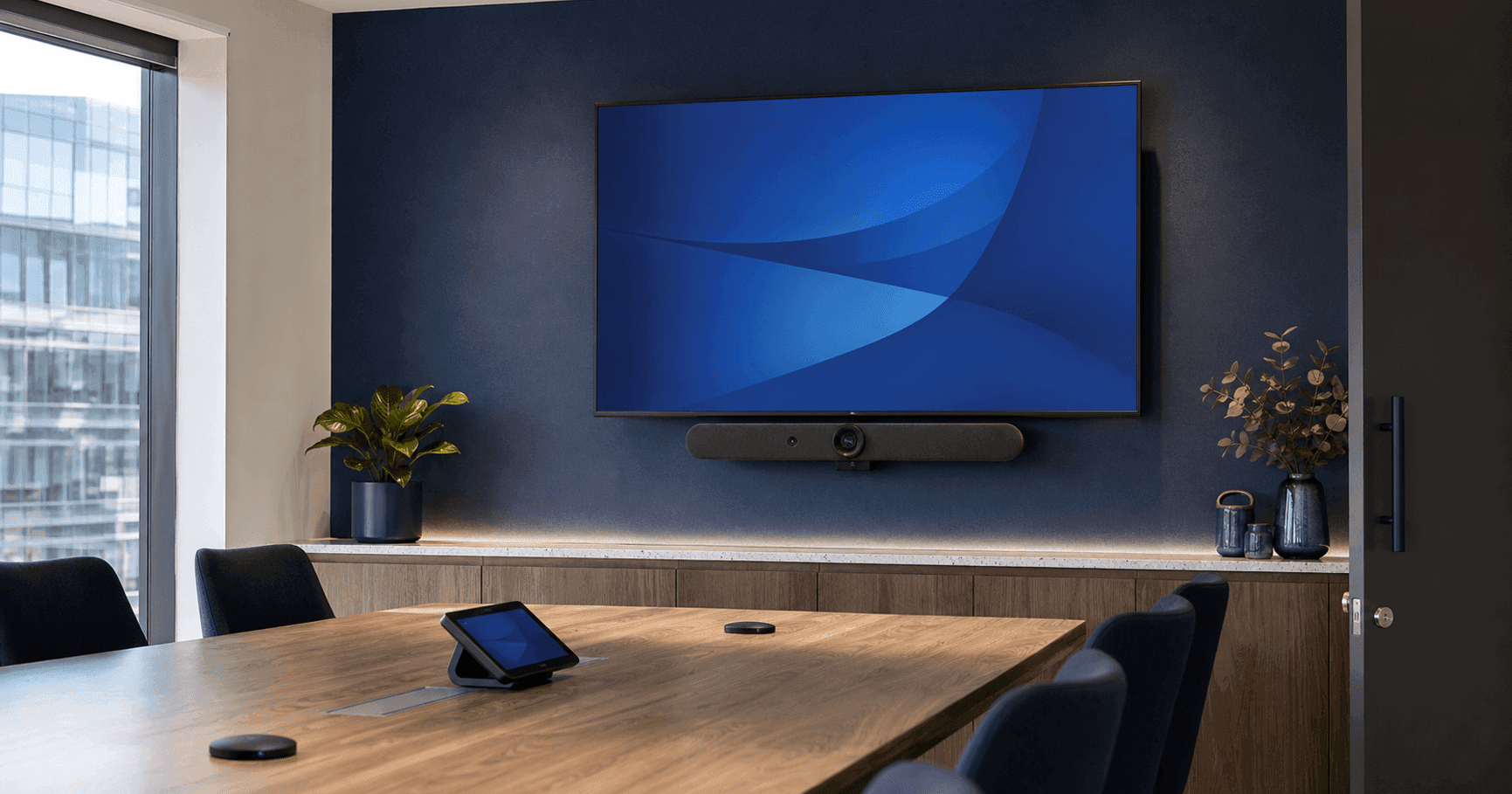
Understand the Rally Bar family before selecting a model
The three bars share an all-in-one approach that combines camera, microphones, loudspeakers, processing, connectivity, and Logitech CollabOS in a front-of-room device. That common architecture simplifies standards, but it does not make their room coverage identical. Logitech positions Rally Bar Huddle for huddle and small collaboration spaces, Rally Bar Mini for small to medium rooms, and Rally Bar for medium to large rooms.
Start with the exact room rather than a seat-count label. Measure room depth and width, locate the farthest occupied seat, note table shape, display position, windows, lighting, and acoustic conditions, and identify how people move around the space. A wide shallow room and a long narrow room with the same capacity can need different framing and microphone decisions.
Treat the manufacturer room category as a shortlist, then confirm camera composition, microphone pickup, loudspeaker coverage, and display sightlines in the proposed layout. If the room is unusually deep, divisible, acoustically difficult, or expected to host many mobile presenters, a modular system may be more appropriate than extending an integrated bar beyond its intended design.
Compare Rally Bar, Rally Bar Mini, and Rally Bar Huddle
A useful comparison matrix should focus on deployment fit rather than a single headline specification. Rally Bar Huddle is the compact option for focus, huddle, and small collaboration spaces and includes a multi-mount for table, wall, or display placement. Rally Bar Mini is designed for small and medium rooms and supports optional Rally Mic Pods when verified for the selected deployment. Rally Bar is intended for medium and large rooms and offers the strongest expansion path within this three-model family.
Logitech documents Rally Bar and Rally Bar Mini with dual HDMI display support in appliance deployments and lists compatible touch controllers, mounting accessories, mic pods, mic pod hubs, extension products, and USB connectivity. Rally Bar Huddle has a different accessory and port profile, so accessories must never be assumed interchangeable merely because the products share the Rally Bar name.
Use this decision sequence: choose Huddle when the occupied area is compact and simplicity is primary; choose Mini when the small-to-medium room needs a stronger integrated front-of-room system or documented microphone expansion; choose Rally Bar when medium-to-large geometry needs greater optical and audio capability. Validate every boundary with a room test and current Logitech documentation.
- Rally Bar Huddle — huddle and small rooms; appliance, room-PC USB, or laptop-connected use.
- Rally Bar Mini — small and medium rooms; appliance or USB deployment with documented mic-pod expansion.
- Rally Bar — medium and large rooms; appliance or USB deployment with the broadest Rally Bar expansion options.
Rally Bar vs Rally Bar Mini vs Rally Bar Huddle: quick comparison
Rally Bar Huddle versus Rally Bar Mini is primarily a question of room intent and expansion. Huddle is Logitech’s compact bar for huddle and small rooms, with one built-in HDMI display output, an included Multi Mount, and an integrated motorized privacy shutter. Mini is positioned for small and medium rooms, has two HDMI outputs, and provides a proprietary input for up to three optional Rally Mic Pods. Choose between them from the actual room geometry, display count, mounting plan, and verified audio coverage—not from model size alone.
Rally Bar differs from the previous modular Rally system by integrating the camera, microphones, speakers, room processing, connectivity, cable management, and CollabOS in one front-of-room enclosure. The earlier Rally and Rally Plus systems use separate camera, table/display hubs, speakers, and mic pods; that modular design can still be appropriate where components need to be distributed around a larger or more complex room.
| Decision point | Rally Bar | Rally Bar Mini | Rally Bar Huddle |
|---|---|---|---|
| Official positioning | Medium to large rooms | Small to medium rooms | Huddle and small rooms |
| Camera field of view / zoom | 90° diagonal; 15× HD zoom (5× optical, 3× digital) | 120° diagonal; 4× HD digital zoom | 120° diagonal; 4× HD digital zoom |
| Built-in HDMI display outputs | 2, up to 1080p | 2, up to 1080p | 1, 1080p |
| Built-in microphone array | 6 beamforming microphones | 6 beamforming microphones | 6 digital microphones |
| Rally Mic Pod expansion | Proprietary input; up to 4 Mic Pods and 2 Hubs | Proprietary input; up to 3 Mic Pods and 2 Hubs | No external microphone input is listed in the current technical specifications |
| Mounting / privacy | Integrated table stand; optional wall and TV mounts; supplied lens caps | Integrated table stand; optional wall and TV mounts; supplied lens caps | Multi Mount included; integrated motorized privacy shutter |
| Deployment modes | Appliance, room-PC USB, or BYOD | Appliance, room-PC USB, or BYOD | Appliance, room-PC USB, or BYOD |
Logitech Rally Bar Ports and Connections
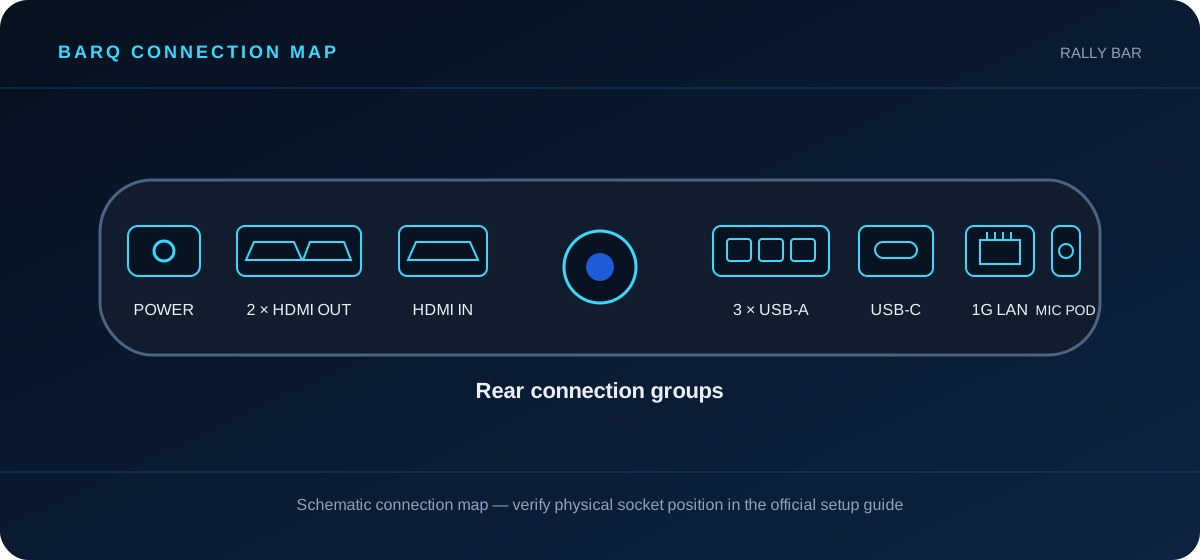
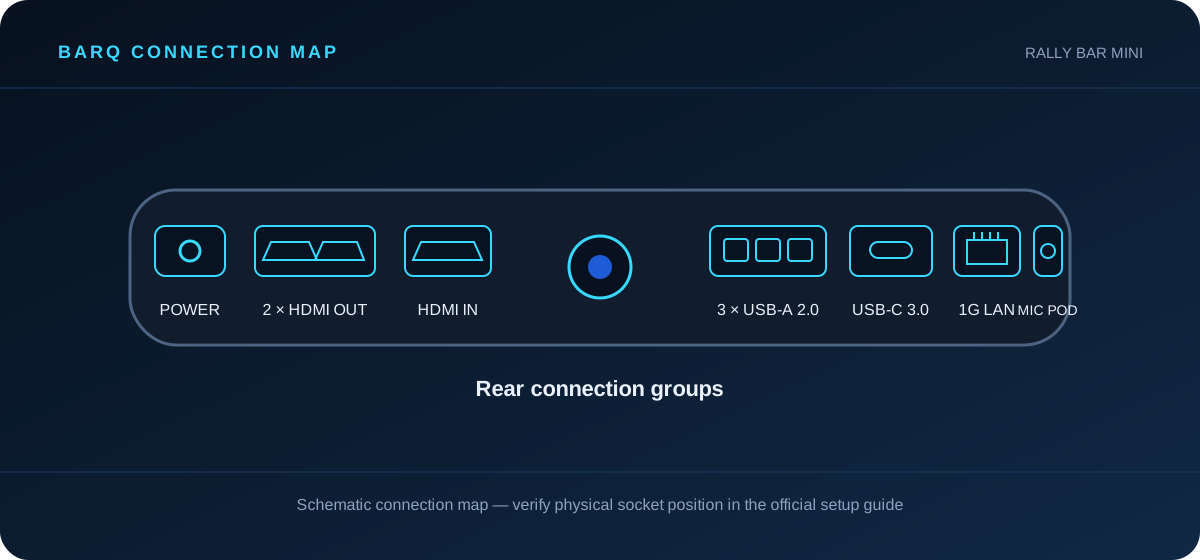
Rally Bar and Rally Bar Mini each provide two HDMI outputs for displays, one HDMI input for wired content, three USB-A ports, one USB-C port, Gigabit Ethernet, and a proprietary external-microphone input for the documented Rally Mic Pod ecosystem. Their USB-C connection carries camera, microphone, speaker, and control data in supported USB deployments; a laptop’s video contribution follows the documented HDMI or supported accessory workflow rather than being assumed from the connector shape.
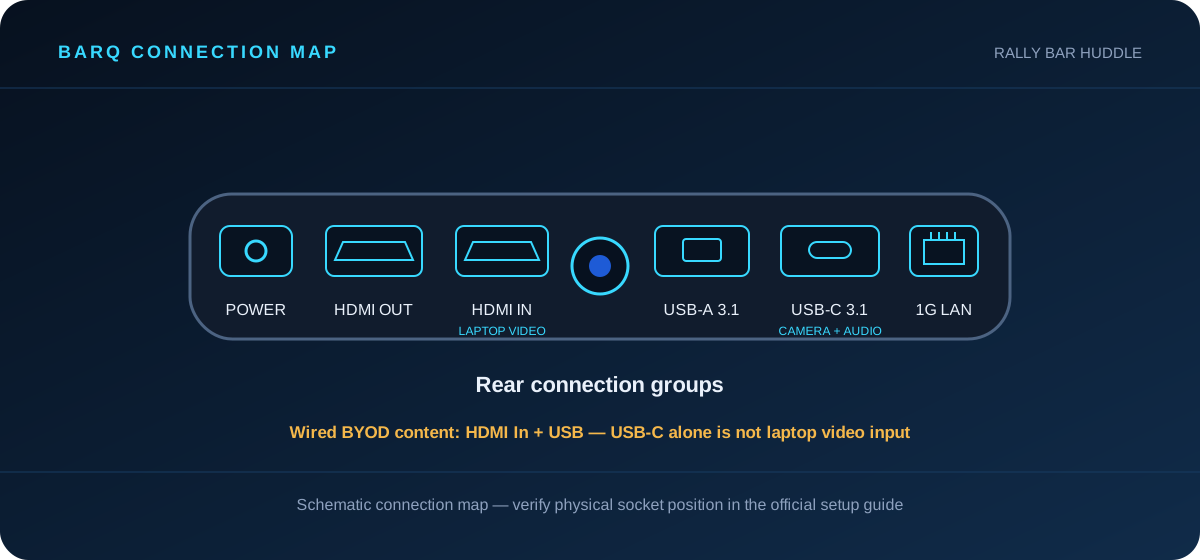
Rally Bar Huddle has one HDMI output, one HDMI input, one USB-A 3.1 port, one USB-C 3.1 port, and 10/100/1G Ethernet. Logitech explicitly states that Huddle’s rear USB-C port is for data and peripheral connectivity, not direct laptop video input. Wired two-cable BYOD therefore uses USB for room camera/audio and HDMI In for content. Logitech Extend can provide a supported single-USB-C table experience while connecting to the bar’s HDMI and USB paths.
Use HDMI Out for the room display, HDMI In for wired presentation/content where the selected mode supports it, USB-C for the supported room-PC or laptop camera/audio connection, USB-A for documented peripherals, Ethernet for wired network service, and the proprietary Mic Pod input only on Rally Bar or Mini. Confirm the setup guide for the exact model, platform, and controller before cabling.
| Port / interface | Rally Bar | Rally Bar Mini | Rally Bar Huddle |
|---|---|---|---|
| HDMI output | 2 (up to 1080p) | 2 × HDMI 1.4 (up to 1080p) | 1 × HDMI Out (1080p) |
| HDMI input | 1 | 1 × HDMI 1.4; 1080p/60 passthrough | 1 × HDMI In; 1080p/60 passthrough |
| USB-A | 3 | 3 × USB 2.0 | 1 × USB 3.1 |
| USB-C | 1 | 1 × USB 3.0 | 1 × USB 3.1; not direct laptop video input |
| Network | 10/100/1G Ethernet | 10/100/1G Ethernet | 10/100/1G Ethernet |
| External microphone | Proprietary Rally Mic Pod input | Proprietary Rally Mic Pod input | No external microphone input listed |
Choose appliance mode, USB mode, or BYOD deliberately
In appliance mode, supported conferencing software runs on the Rally Bar through CollabOS without a separate room computer. Logitech documents appliance configurations for platforms including Microsoft Teams Rooms, Zoom Rooms, and Google Meet, subject to the exact model and current certification. This model can reduce components and creates a dedicated room experience, but it still requires a supported controller, account, network, display, and management design.
In USB mode, the bar acts as the room camera, microphone, and speaker for a connected room computer. This is appropriate when the organization standardizes on a Windows or other supported room-compute architecture, needs a capability delivered by that architecture, or has an established PC management model. Confirm USB cable type and length; not every Logitech active cable supports every Rally Bar workflow.
BYOD lets a user connect a laptop and use the room AV for a meeting application. That sounds simple, but the intended cable path and content sharing must be documented. Some deployments require separate USB and HDMI connections, while Logitech Extend or another supported accessory may provide a different table experience. Test charging, content, camera, audio, cable reach, and recovery before declaring a one-cable workflow.
Setup and wiring by deployment mode
In appliance mode, CollabOS runs the supported meeting-room application on the bar. Connect the room display to HDMI Out, provide network and power, then pair the currently supported room controller and complete the platform account setup. Tap IP is a network-connected touch controller powered over Ethernet in supported appliance-room designs; compatibility is model- and platform-specific, so verify Logitech’s current Tap compatibility guidance before ordering.
In room-PC USB mode, connect the Rally Bar family device to the dedicated room computer over the documented USB path so the bar serves as camera, microphone, and speaker. Display connections and touch-controller wiring follow the selected Windows or other supported room design. Logitech Tap commonly connects by USB in supported PC-based room bundles, while Tap IP is used in supported network-connected appliance designs; neither name should be treated as interchangeable wiring guidance.
For laptop BYOD, define whether the laptop supplies only conferencing USB or also wired content. The documented Rally Bar Huddle workflow uses USB for camera/audio plus HDMI In for laptop content; its USB-C port alone does not accept laptop video. A supported Logitech Extend design can move that combined workflow to a single USB-C connection at the table. Validate cable length, charging expectations, display routing, content sharing, and recovery with the exact hardware before handover.
Plan Microsoft Teams Rooms and Zoom Rooms as complete systems
A certified video bar is one component of a room platform. For Microsoft Teams Rooms, verify the model, Android or Windows deployment, touch controller, resource account, licence, displays, supported peripherals, and management path. For Zoom Rooms, verify current Zoom certification, controller, room account, displays, and Zoom Device Management requirements. Do not transfer a certification from one model or mode to another.
Appliance mode can provide a compact native-room experience, while a PC-based room may align with an existing Windows standard. The choice affects cabling, security, update ownership, controller connectivity, support boundaries, and feature timing. Record the chosen platform and mode in the room standard so technicians do not accidentally reconfigure a room into an unsupported hybrid.
Cross-platform meetings may use the native platform’s supported guest-join capability or a planned BYOD route. Define which method is supported and train users accordingly. A room that can technically be re-cabled in several ways is not operationally consistent unless the approved workflows are clearly documented, labelled, monitored, and included in acceptance tests.
Use camera and AI features within verified platform behavior
Logitech describes the Rally Bar family with AI video intelligence and features delivered through its camera system and software. Depending on model, software, and platform, these can include automatic framing, speaker-oriented views, participant composition, and continuous improvements. Feature names and availability may differ between appliance platforms and USB applications, so confirm the current support matrix.
AI framing cannot replace correct placement. Mount the bar close to the natural eye line and horizontal center of the display where practical, avoid placing it behind objects, and check that the full occupied area sits inside the usable field of view. Strong backlight, extreme side angles, glass walls, and people outside the intended seating area can affect composition.
Decide which camera experience is suitable for the organization and verify privacy expectations. Test a normal discussion, a presenter standing, participants entering late, and empty-room behavior. Record approved settings in Logitech Sync or the room documentation so replacement devices and firmware changes do not silently alter the experience.
RightSight 2, Logitech Sync, and current CollabOS capabilities
RightSight 2 currently provides model-compatible framing experiences including Group View, Speaker View, Grid View, and Camera Zone across Rally Bar, Rally Bar Mini, and Rally Bar Huddle. The exact experience depends on device, deployment mode, conferencing service, configuration, and CollabOS release. Treat the current Logitech compatibility matrix—not an evergreen feature promise—as the authority when specifying a platform-dependent view.
Logitech Sync provides a management path for supported devices, including inventory, health, configuration, and software-update workflows. Appliance-mode devices can be managed through Sync Portal, while supported USB-mode update workflows use Sync App on the room computer. Coordinate Sync with the meeting platform’s own admin portal and pilot changes before broad rollout.
CollabOS capabilities and certifications change through releases and platform integrations. Keep this guide’s architecture-level advice, but check Logitech’s current device-feature matrix, CollabOS release notes, certification list, and update policy at design, commissioning, and major-upgrade time.
Design microphone and loudspeaker coverage, not just connectivity
Integrated microphones are convenient, but the room must be tested from every occupied seat. Logitech publishes model-specific pickup information and accessory limits; use those values only for the exact bar and configuration. Reflective walls, glass, HVAC noise, table distance, and quiet speakers can reduce real-world intelligibility even when the connection is successful.
Rally Bar and Rally Bar Mini support documented Rally Mic Pod expansion, with limits and accessory requirements that vary by model. Plan the cable route, mic positions, hubs, mounts, and extension cables before furniture is ordered. A mic pod placed under papers, beside a noise source, or outside comfortable mute-button reach undermines the intended experience.
Test audio in both directions with remote listeners. Include normal and quiet speech, overlapping discussion, far seats, local loudspeaker level, echo, and noise suppression. If the integrated architecture cannot provide consistent coverage without excessive expansion, reconsider the room standard rather than adding accessories without a verified design.
Build an exact accessory and cable schedule
Typical appliance deployments may require Logitech Tap IP or another currently supported touch controller, appropriate PoE network service, display cables, mounting, and room-account preparation. USB deployments add room compute, the correct USB cable, and often a different controller connection. BYOD may add Logitech Extend, Swytch in supported designs, or a documented USB-plus-HDMI table connection.
Mounting choices include table placement, wall mounts, and display mounts, but compatibility varies. Rally Bar Huddle includes its Multi Mount, while Rally Bar and Mini use their documented mounting ecosystem. Check VESA conditions, display depth, wall construction, service clearance, ventilation, camera height, and whether the mount remains stable when the display is moved.
Create a bill of materials by model and mode. Include every cable, coupler, power supply, PoE requirement, mic pod, hub, extension, mount, controller bracket, and spare. Do not accept the phrase “standard cables” in a final design; record connector type, supported length, route, retention, and ownership.
Install for sightlines, serviceability, and reliable cabling
Survey the front wall before fixing equipment. Confirm display center, bar position, wall structure, power, network, conduit capacity, cable bend radius, and access to ports. The device should not block the display or be blocked by furniture. Keep ventilation and mounting clearances consistent with Logitech instructions.
Separate signal and power routing where required, protect table cables, use strain relief, and leave a documented service loop without creating visible clutter. For long USB routes, use only a cable solution approved for the exact mode and distance. A cable that passes a basic camera test may still fail under content sharing, updates, or sustained meetings.
After physical installation, enroll and update devices through the approved management path, then capture serial numbers, network identity, CollabOS version, platform account, controller, accessories, and room mapping. Photograph the finished cable connections and store the configuration with the room acceptance record.
What's in the Box?
Package contents below are for the standalone devices described on Logitech’s current US product and technical-specification pages. Regional part numbers, no-radio variants, and room bundles can differ; optional controllers, mounts, mic pods, and service plans are not included unless the ordered bundle explicitly says so.
| Model | Included components |
|---|---|
| Rally Bar | Rally Bar; power supply; AC power cord; HDMI cable; USB cable; remote control (except the no-radio model); lens caps for the main camera and AI Viewfinder; user documentation |
| Rally Bar Mini | Rally Bar Mini; 90 W / 19 V power supply; AC power cord; HDMI cable; USB cable; remote control; lens caps for the main lens and AI Viewfinder; user documentation |
| Rally Bar Huddle | Rally Bar Huddle; power supply; Multi Mount; 2.2 m USB-A-to-USB-C 3.0 cable; 2 m HDMI 1.4 cable; three wall anchors and three screws; quick-start guide printed on the box |
Match common enterprise scenarios to the correct design
A small focus or huddle room usually benefits from Rally Bar Huddle when the occupied area is compact and expansion is not required. A conventional six-to-twelve-seat room may suit Rally Bar Mini when its verified camera and audio coverage match the geometry. Deeper medium rooms and larger boardrooms may justify Rally Bar, optional mic pods, or a modular alternative after a proper design review.
For a native Teams or Zoom estate, standardize the appliance platform, controller, network, account naming, and management process. For organizations with centrally managed room computers, standardize USB mode and the supported compute bundle. For multipurpose spaces, define whether BYOD is the primary experience or a controlled fallback rather than leaving users to choose among undocumented cable paths.
Executive rooms need the same technical validation plus stronger operational controls: proactive monitoring, spare strategy, documented escalation, and observed user testing. Training and project rooms may prioritize content sharing and flexible seating. Mobile carts require secure mounting, cable protection, stable networking, and a defined storage and charging process.
Avoid common Rally Bar planning mistakes
The first mistake is selecting by seat count alone. The second is assuming all Rally Bar accessories, ports, and platform modes are identical. The third is promising a one-cable BYOD workflow without specifying the accessory, laptop requirements, content path, cable length, and charging behavior. Each is prevented by an exact model-and-mode design.
Another frequent problem is using AI features to compensate for poor camera height, backlighting, or room geometry. Similarly, adding mic pods does not correct severe reverberation or mechanical noise. Fix physical conditions first, then verify device settings and expansion using official documentation.
Finally, do not commission only by seeing your own image on screen. Test calendar join, controller, remote audio, content, BYOD, restart recovery, network loss, management visibility, firmware, and user support. Record the result and repeat it after material updates.
Manage the rooms as a supported fleet
Logitech Sync can provide inventory, health, settings, and update functions for supported devices. Define who monitors the portal, approves updates, responds to offline rooms, and maintains room-to-device mapping. Coordinate Sync with the conferencing platform’s administration portal rather than assuming one view contains every relevant condition.
Pilot firmware and CollabOS updates on representative rooms before broad deployment. Include each model, mode, controller, display arrangement, and important accessory in the pilot set. Review current release notes and certification status, then confirm join, camera, audio, content, and management behavior.
Maintain a lifecycle plan for bars, controllers, mounts, mic pods, cables, room compute, and displays. Keep a known-good spare strategy and documented replacement procedure. A consistent Rally Bar standard delivers value only when the organization can restore a failed room without rebuilding its design from memory.
Firmware, setup, and troubleshooting resources
For setup, start with Logitech’s product-specific Getting Started or Quick Start documentation and follow the diagram for the exact deployment mode. For current features and platform behavior, use the CollabOS device compatibility matrix and release notes. For firmware and software, use Logitech Business Software Support and the documented Sync Portal or Sync App update workflow rather than downloading from an unofficial mirror.
If a room fails, first record the exact model, CollabOS version, conferencing platform, deployment mode, controller, and cable path. Confirm power, network, display input, USB and HDMI seating, then reproduce the approved workflow after a controlled restart. Preserve logs and room/device identity before escalating through official Logitech support. Avoid factory resets or broad firmware changes until the organization’s support owner has captured the current state and checked the release notes.
Frequently asked questions
Which Logitech Rally Bar is right for a small room?
Logitech positions Rally Bar Huddle for huddle and small rooms and Rally Bar Mini for small to medium rooms. Select only after checking room geometry, farthest seat, platform, audio coverage, display design, and required expansion.
Can Rally Bar run Microsoft Teams Rooms without a PC?
Supported Rally Bar configurations can run Microsoft Teams Rooms in appliance mode through CollabOS. Verify the exact model, current certification, controller, licence, account, peripherals, and software release.
Can Rally Bar be used with Zoom Rooms?
Yes, supported models and bundles can run Zoom Rooms in appliance or room-computer configurations. Confirm current Zoom certification and the complete room design before procurement.
What is the difference between USB mode and BYOD?
USB mode normally connects the bar to dedicated room compute. BYOD connects a user laptop to the room AV. The physical connection may still use USB and HDMI, but ownership, workflow, cabling, and support are different.
Do I need Rally Mic Pods?
Only when the exact bar supports them and room testing shows integrated pickup is insufficient. Follow model-specific limits and design the hubs, extension cables, mounts, and furniture route before installation.
What should be tested before a Rally Bar room is accepted?
Test platform sign-in, calendar join, controller, camera composition, audio from every seat, content sharing, approved BYOD, restart recovery, network recovery, management visibility, and the user support path.
What ports does Logitech Rally Bar have?
Rally Bar has two HDMI outputs, one HDMI input, three USB-A ports, one USB-C port, 10/100/1G Ethernet, and a proprietary external-microphone input for supported Rally Mic Pods, Hubs, and extension cables. The no-radio variant omits Wi-Fi, Bluetooth, and the remote.
What ports does Rally Bar Mini have?
Rally Bar Mini has two HDMI 1.4 outputs, one HDMI 1.4 input, three USB-A 2.0 ports, one USB-C 3.0 port, 10/100/1G Ethernet, and a proprietary external-microphone input for supported Rally Mic Pod accessories.
What comes in the Logitech Rally Bar box?
The current standalone Rally Bar package lists the bar, power supply, AC power cord, HDMI cable, USB cable, remote control, lens caps for the main camera and AI Viewfinder, and user documentation. The no-radio model does not include a remote, and regional bundles can differ.
What distinguishes Rally Bar from the previous modular Rally system?
Rally Bar integrates camera, microphones, speakers, processing, connectivity, cable management, and CollabOS in one front-of-room device. The modular Rally and Rally Plus systems use separate camera, hubs, speakers, and mic pods, allowing those components to be distributed through larger or more complex rooms.
What makes Rally Bar Huddle different?
Rally Bar Huddle is the compact model for huddle and small rooms. It has one HDMI output, an included Multi Mount, an integrated motorized privacy shutter, a 120-degree diagonal field of view, and a different port and accessory profile from Rally Bar and Mini.
Rally Bar Huddle vs Rally Bar Mini: which should you choose?
Choose from the room and deployment requirements. Huddle targets huddle and small rooms and provides one built-in HDMI output with an included Multi Mount. Mini targets small and medium rooms, provides two HDMI outputs, and supports up to three optional Rally Mic Pods. Validate room geometry, display count, mounting, platform, and audio coverage before deciding.
Where can administrators find Rally Bar firmware and support documentation?
Use Logitech Business Software Support, the product-specific Getting Started pages, the CollabOS device compatibility matrix, and current CollabOS release notes. Appliance devices use the documented Sync Portal workflow; supported USB deployments use Sync App on the room computer.
Official sources
- Rally Bar product page and specifications — Logitech
- Rally Bar Mini product specifications — Logitech
- Rally Bar Huddle technical specifications — Logitech Sync
- Rally Bar Huddle USB-C and content-sharing guidance — Logitech Sync
- Exploring the three modes of Logitech Rally Bars — Logitech Sync
- CollabOS devices, compatibility, and features — Logitech Sync
- RightSight and RightSound features — Logitech Sync
- How to update CollabOS devices — Logitech Sync
- Logitech Business Software Support — Logitech Sync
- Rally Plus modular system — Logitech
Related products
Related solutions
Meeting Room SolutionsRelated articles
Microsoft Teams Rooms Planning Guide: From Room Survey to DeploymentPlanning a project?
Share your room or display requirements and the Barq team will return with a clear solution and quotation.
Request a quote