
Complete Guide to Yealink Meeting Room Systems: Android, Windows, and Room Design
Yealink offers several meeting-room architectures rather than one universal kit. MeetingBar appliances combine Android-based room processing, camera, microphones, loudspeakers, and connectivity. MVC systems combine Microsoft Teams Rooms on Windows compute and touch control with Yealink cameras and audio devices. MeetingBoard integrates a large interactive display with meeting and whiteboard functions, while RoomPanel and WPP30 address scheduling and content workflows. Choosing among them requires an exact room survey, a platform decision, a verified bill of materials, and a support model. This guide follows Yealink product pages, datasheets, compatibility information, and Microsoft or Zoom platform positioning. Capabilities, certifications, bundles, and accessories evolve, so each model and regional package must be checked when the system is designed and ordered.
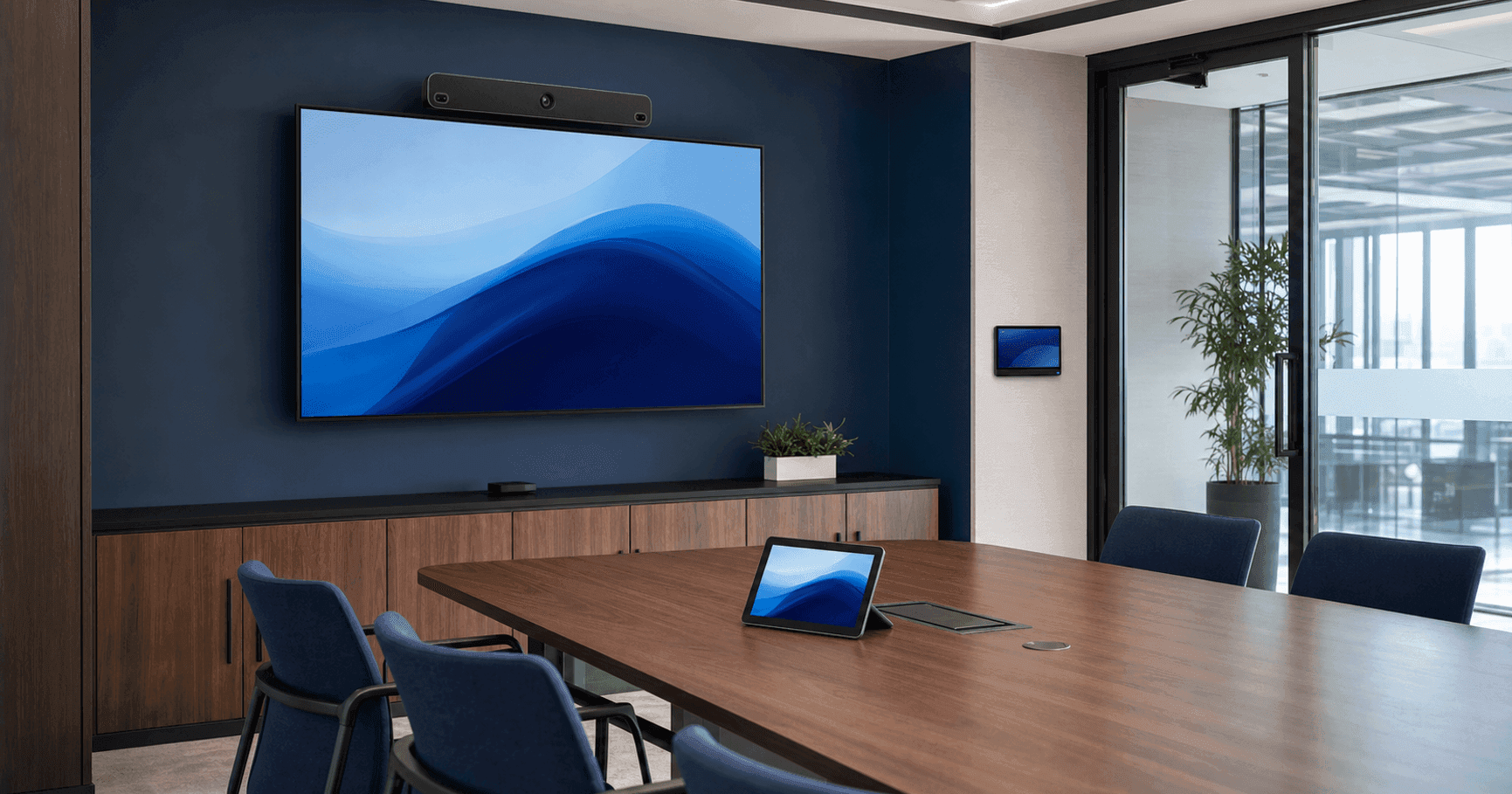
Map the Yealink portfolio before comparing specifications
MeetingBar A10, A20, A30, A40, and A50 represent different generations and room targets within an integrated appliance family. Yealink positions A10 for home office, focus, huddle, and small rooms; A40 for small-to-medium rooms; and A50 for medium-to-large rooms. A20 and A30 remain common in installed estates and catalogs, but current lifecycle and replacement guidance must be checked because availability changes.
MVC S40, MVC S60, and MVC860 are Microsoft Teams Rooms on Windows designs. MVC S40 uses SmartVision 40 for a front-of-room small-to-medium experience. MVC S60 uses SmartVision 60 as a center-of-table 360-degree audio-video device for high-end medium rooms. MVC860 uses the UVC86 PTZ camera with separate microphones and loudspeaker components for medium-to-large geometry.
MeetingBoard is a collaboration display rather than simply another video bar. RoomPanel is a scheduling endpoint outside the room, and WPP30 is a wireless presentation pod for supported Yealink systems. These products may work together, but each has a distinct role, compatibility list, firmware path, and deployment requirement.
Choose Android or Windows as an operating model
MeetingBar systems provide a compact appliance architecture for supported native Microsoft Teams Rooms or Zoom Rooms experiences. The appliance reduces room-compute components and can simplify repeated installations. It still needs platform accounts, licences, touch or remote control, displays, network access, firmware management, and a documented content-sharing path.
MVC systems use Microsoft Teams Rooms on Windows. Their mini-PC, touch console, camera, microphones, loudspeakers, and accessories form one validated room system. Windows may suit organizations that require the current Windows feature set, established endpoint controls, or modular camera and audio choices. It also creates responsibilities for compute mounting, cabling, security policy, recovery, and lifecycle.
Do not describe Android as the small-room option and Windows as the large-room option without qualification. Yealink offers Android products for multiple room sizes and Windows kits for small through pro-AV spaces. Select according to required platform features, certification, room geometry, peripherals, management, and enterprise standards.
Compare MeetingBar A10, A20, A30, A40, and A50
The practical matrix begins with room intent. A10 is the compact huddle-room bar with an ultra-wide camera and integrated audio. A20 addresses small rooms and A30 extends the earlier MeetingBar generation toward medium spaces with a dual-camera design. A40 is the current dual-eye small-to-medium bar, while A50 uses a triple-camera architecture and stronger audio coverage for premium medium-to-large rooms.
Generation matters. Camera systems, Android versions, touch consoles, supported microphones, presentation accessories, cabling, security architecture, and AI functions differ. Yealink documents A40 with dual 48 MP cameras and A50 with three 50 MP cameras, but megapixel totals alone do not determine room fit. Evaluate field of view, subject distance, camera position, platform composition, and lighting.
Use the comparison as a shortlist: A10 for compact spaces; A20 where an existing small-room standard remains supported; A30 for installed or specified medium-room systems after lifecycle verification; A40 for current small-to-medium integrated deployments; A50 for medium-to-large integrated designs. Confirm exact bundle codes and accessory compatibility.
- A10 — focus, huddle, and small rooms; compact integrated appliance.
- A20 — small-room appliance; confirm current lifecycle and replacement guidance.
- A30 — earlier dual-camera medium-room appliance; verify availability and firmware path.
- A40 — current dual-camera bar for small-to-medium rooms.
- A50 — current triple-camera bar for medium-to-large rooms with expansion options.
Compare MVC S40, MVC S60, and MVC860
MVC S40 combines Windows room compute and touch control with SmartVision 40. Yealink positions SmartVision 40 for small-to-medium rooms and documents dual-eye imaging, integrated microphones and speakers, AI framing features, and support for documented expansion microphones. It is a front-of-room integrated peripheral within a Windows room architecture.
MVC S60 is designed around SmartVision 60, a center-of-table 360-degree panoramic camera and microphone device. Its placement creates a different participant perspective from a front-of-room camera. Validate table size, device-to-participant distance, cable route, sightlines, screen orientation, and whether the platform features required by the organization are supported.
MVC860 uses a separate UVC86 PTZ camera, MCore compute, MTouch control, and bundle-dependent microphones, speaker, hub, and WPP30. This modularity is useful for deeper medium and large rooms where camera reach and distributed audio matter. It also increases design responsibility: every component, cable, mount, coverage zone, and bundle suffix must be recorded.
- MVC S40 — small-to-medium, front-of-room SmartVision 40, Windows Teams Rooms.
- MVC S60 — high-end medium boardroom, center-of-table 360-degree SmartVision 60.
- MVC860 — medium-to-large, modular PTZ camera and distributed audio options.
Select systems for small, medium, large, and extra-large rooms
For focus and huddle rooms, prioritize quick start, wide coverage at short distance, and minimal cabling. MeetingBar A10 is a direct candidate when its native platform and controller workflow match requirements. In small rooms, A40 or an MVC S40 configuration can provide current integrated front-of-room coverage, with Android or Windows chosen deliberately.
Medium rooms require closer attention to table depth and seating pattern. A40 may fit a compact medium space, A50 expands the appliance option, MVC S40 addresses front-of-room Windows designs, and MVC S60 addresses suitable center-of-table boardroom layouts. Test the actual room rather than assigning solely by seats.
Large rooms may use A50 with officially supported expansion audio or MVC860 with UVC86 and distributed microphones. Extra-large and complex rooms frequently move beyond these standard kits to MVC S90, multi-camera, AVHub, ceiling audio, or professional AV integration. Do not extend a standard kit into a divisible or deep boardroom without a documented design and pilot.
Plan native Teams Rooms and Zoom Rooms workflows
For Microsoft Teams Rooms, verify whether the selected product is certified and supported as Android or Windows, then prepare the room resource account, licence, calendar, touch controller, network, management portals, and displays. Model names can appear in several bundle forms; certification and accessories must match the exact bundle.
Yealink also offers native Zoom Rooms product variants and ZVC systems. Do not assume a Teams SKU becomes a Zoom appliance by changing a setting. Use the manufacturer’s Zoom product page and certification information for the exact model, and define Zoom Device Management plus any Yealink management role.
Cross-platform calls should follow platform-supported guest join or an approved device-mode or BYOD workflow. State which is primary, which is fallback, and what the user connects. Test external meetings, content sharing, camera and audio selection, and return to the native room state.
Design appliance mode, device mode, BYOD, and content sharing
MeetingBars can provide native appliance operation and, on supported models and firmware, device or BYOD use where a laptop uses the room camera and audio. Required accessories and connections vary. A50 documents a touch-console and USB-C workflow; older A20 or A30 deployments may use VCH51 or other supported accessories. Never generalize one model’s connection diagram.
WPP30 provides wireless presentation for compatible Yealink endpoints and selected workflows. Verify the target model, firmware, conferencing platform, USB interface, security policy, radio environment, and regional bundle. Wireless convenience does not remove the need for a tested wired fallback in business-critical rooms.
Document whether sharing is native wireless, HDMI, USB-C, WPP30, or another supported path. Check content resolution, audio, touchback where claimed, charging, guest permissions, and behavior after disconnect. Label the user connection and keep administration cables inaccessible.
Evaluate AI camera and audio features by model and platform
Yealink documents features such as auto framing, speaker tracking, IntelliFocus, video fence, picture-in-picture, and platform-specific gallery experiences across selected products. Availability depends on model, firmware, platform, licence, and configuration. A feature listed for A50 or SmartVision 40 must not be copied to A10 or an older A30 without verification.
Camera intelligence works best when the physical design is correct. Keep the camera near participant eye line, avoid strong backlight, confirm the occupied area, and define whether standing presenters or whiteboards must remain visible. For SmartVision 60, test the center-of-table perspective and recommended participant distance.
AI noise cancellation and reverberation suppression can improve supported scenarios, but they cannot correct every acoustic problem. Measure background noise, listen for echo and reverberation, and test quiet voices and overlap. Use acoustic treatment or a different audio architecture when the room needs it.
Place MeetingBoard, RoomPanel, and WPP30 in the architecture
MeetingBoard combines a professional interactive display, camera, microphones, speakers, touch, whiteboarding, and meeting functions in supported configurations. Select size and mount from room viewing distance and interaction needs. Verify whether the proposed model is MeetingBoard, MeetingBoard Pro, or a C variant because cameras, compute options, operating systems, and accessories differ.
RoomPanel is installed at the entrance for room availability and scheduling. Current RoomPanel E2 products and earlier RoomPanel models have different lifecycle, operating system, and management details. Plan PoE, network segmentation, mounting surface, accessibility, calendar integration, LED visibility, account mapping, and management.
WPP30 is a content-collaboration accessory, not a complete room system. Treat it as part of the exact MeetingBar, MeetingBoard, MVC, or Zoom workflow for which Yealink documents support. Record ownership and keep spare pods controlled, updated, and available.
Create a bundle-specific accessory schedule
Yealink names such as A40-031 or MVC860-C5-713 identify bundles, not merely cosmetic variations. The suffix can determine whether a touch panel, microphones, loudspeaker, RoomSensor, WPP30, hub, or other component is included. Procurement must quote and validate the complete SKU rather than a family name.
Plan touch consoles such as CTP25, MTouch E2, or MTouch Plus only where documented. Plan VCM microphones, CM20 ceiling microphones, CS10 speakers, mounts, floor stands, RoomSensor, BYOD extenders, presentation pods, and network switches against the current compatibility list. Do not mix generations by connector similarity.
Record all power supplies, PoE requirements, cable categories and lengths, HDMI outputs, USB routes, mounts, compute brackets, display interfaces, and service access. Validate what ships in the box and what must be ordered separately for the chosen region.
Follow disciplined installation and commissioning
Survey walls, table, lighting, acoustics, power, network, conduit, mounting structure, ventilation, and service access. Decide camera and display height from sightlines, not from convenient cable holes. Center front-of-room bars where practical and secure table devices without hiding microphones or controls.
For Windows MVC systems, secure MCore compute in a serviceable location and protect every cable from the front wall to MTouch and peripherals. For MeetingBars, preserve access to the correct ports and privacy mechanism. For MeetingBoard, follow the exact wall or floor-stand loading and assembly instructions.
Update supported firmware, enroll management, configure accounts, and capture serial numbers and room mapping. Commission camera views, microphone pickup, loudspeakers, content, controller, calendar join, BYOD, restart recovery, and management alarms. Store diagrams and approved settings with the room record.
Avoid common Yealink deployment mistakes
Do not choose a product because its name contains a higher number, because a camera has more megapixels, or because a bundle is described for the same seat count. Model generation, camera architecture, operating platform, audio expansion, lifecycle, and room geometry matter more than one number.
Do not confuse appliance and Windows SKUs, Teams and Zoom variants, or accessories across generations. Do not promise WPP30, touchback, dual display, BYOD, ceiling audio, or AI views until the exact compatibility and firmware documentation supports the design.
Do not skip the pilot. A successful login at the installer’s desk does not validate far-seat framing, table microphones, remote intelligibility, room scheduling, content, guest meetings, recovery, or support. Test observed users and record exceptions before scaling.
Operate Yealink rooms as a managed enterprise fleet
Use the conferencing platform portal and an approved Yealink management service where applicable to maintain inventory, firmware, health, configuration, and alarms. Define ownership between collaboration, endpoint, network, security, facilities, and AV teams.
Pilot updates across representative Android bars, Windows MVC systems, controllers, MeetingBoards, RoomPanels, WPP30 workflows, and important accessories. Review release notes and certification changes. Confirm native join, camera, audio, content, device mode, and management after each material update.
Maintain lifecycle status and spare strategy by exact SKU. Older A20, A30, or RoomPanel installations may remain serviceable but should not be assumed equivalent to current A40, A50, or RoomPanel E2 products. Plan replacement as a room standard rather than a one-device swap.
Frequently asked questions
Should we choose a Yealink MeetingBar or an MVC system?
Choose MeetingBar for a supported integrated Android appliance architecture and MVC for Microsoft Teams Rooms on Windows with room compute and modular peripherals. Verify platform features, room geometry, certification, management, and lifecycle.
Which Yealink system is suitable for a small room?
A10 suits compact focus and huddle spaces; A40 and MVC S40 are candidates for current small-to-medium designs. The final choice depends on geometry, platform, audio, control, content, and current certification.
What is the difference between MVC S40 and MVC S60?
MVC S40 uses front-of-room SmartVision 40 for small-to-medium rooms. MVC S60 uses center-of-table SmartVision 60 with a 360-degree view for suitable high-end medium boardrooms.
When should we consider MVC860?
MVC860 is a modular Windows Teams Rooms option for medium-to-large rooms needing UVC86 PTZ camera reach and bundle-specific distributed microphones and loudspeakers.
Can Yealink systems support BYOD?
Selected MeetingBars and MVC bundles support documented device-mode or BYOD workflows, sometimes using WPP30, VCH51, a BYOD extender, or model-specific USB-C connections. Verify the exact model and firmware.
Are MeetingBoard and RoomPanel part of the same room system?
They can be coordinated but serve different roles. MeetingBoard is an interactive collaboration display; RoomPanel is an entrance scheduling endpoint. Each needs its own supported configuration, network, mounting, and management.
What must be checked before ordering a Yealink bundle?
Confirm exact SKU suffix, included components, platform certification, lifecycle, controller, displays, microphones, speakers, mounts, cables, WPP30 or BYOD support, firmware, licences, and management.
Official sources
Related products
Related solutions
Meeting Room SolutionsRelated articles
Microsoft Teams Rooms Planning Guide: From Room Survey to DeploymentLogitech Rally Bar Complete Guide: Models, Modes, and Room DesignPlanning a project?
Share your room or display requirements and the Barq team will return with a clear solution and quotation.
Request a quote